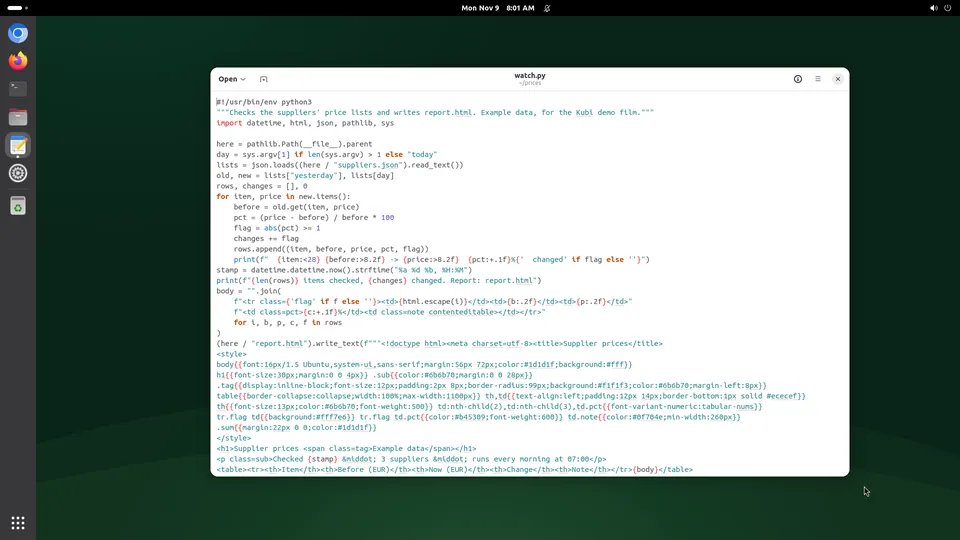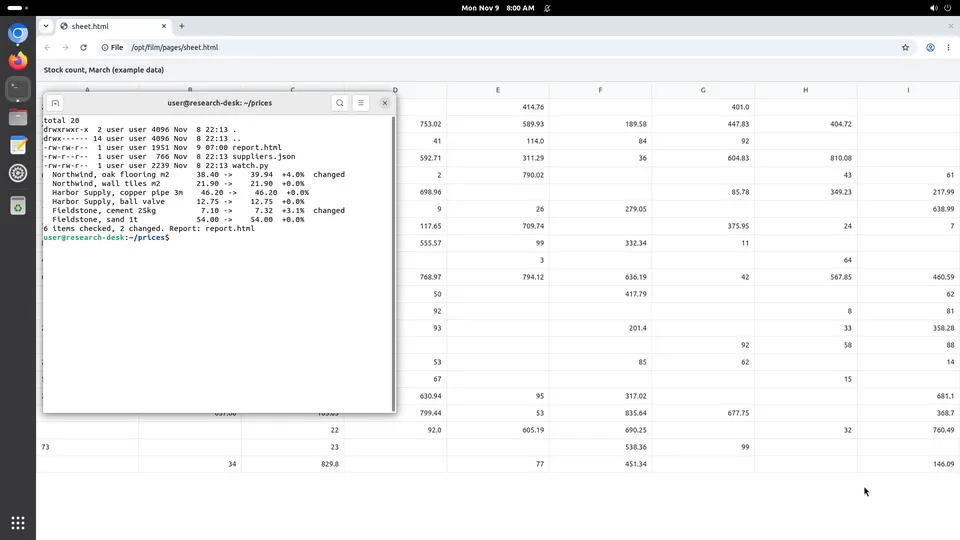
VS Code on a Kubi screen
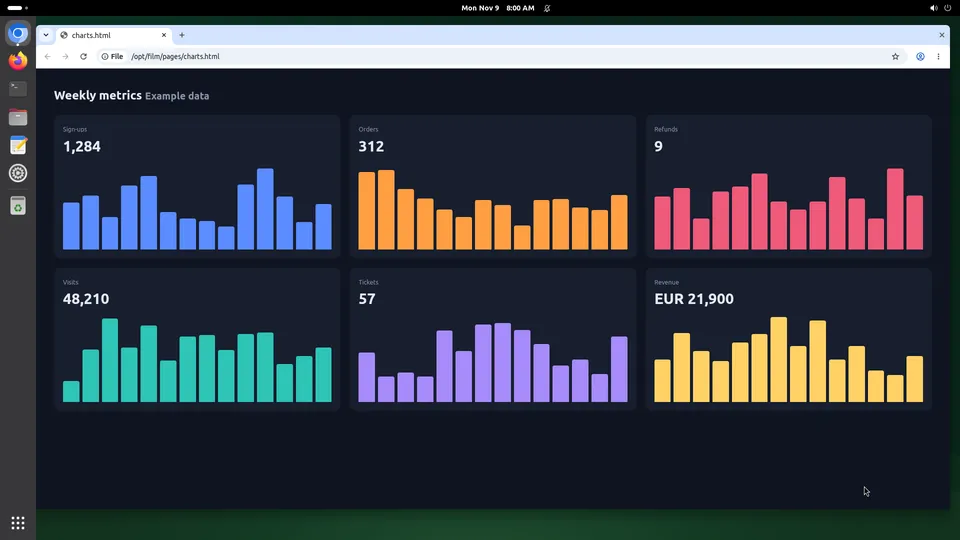
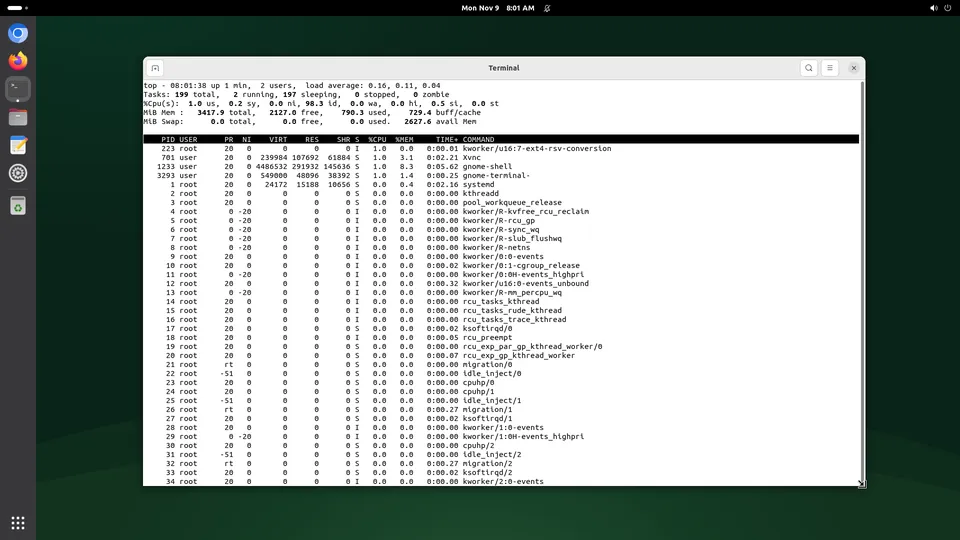
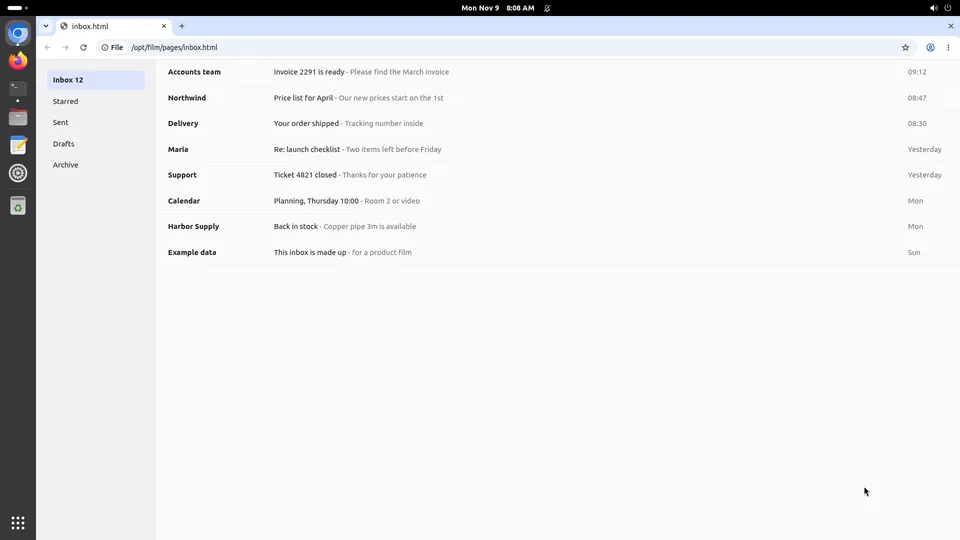
VS Code's agent mode speaks MCP, so a desktop is one Command Palette entry away. Kubi hosts the server, so there is no process to run beside your editor and nothing to update. The agent gets a screen it can look at and act on, and you keep the live view and the mouse.
What VS Code gains
VS Code is the editor, with its agent mode. These three are what change when it has a desktop of its own.
Nothing to install beside the editor
The server is hosted at an https address and speaks MCP's Streamable HTTP transport. No local bridge, no node process minding a browser.
The same screen from every tool you use
The editor, a terminal agent and your own script can all reach one screen with the same permissions, so the machine does not fork into three almost-identical copies.
Commands and files, not only clicks
exec runs a shell command on the screen and read_file and write_file move files, so the agent reaches for the GUI only when the GUI is the point.
Set it up
About two minutes, and nothing to install: our MCP server is hosted.
Step 1
Add the server
Open the Command Palette, run MCP: Add Server, choose HTTP and paste the address.
https://mcp.trykubi.comStep 2
Sign in and pick the screen
The first call opens our sign-in page in your browser. Choose which screens the app may use and what it may do, then go back to the app. You can take it back at any time in the dashboard.
Step 3
Turn it on in the chat
In agent mode, the Kubi tools appear in the tool list. screenshot and act drive the desktop; guide answers questions about the loop from the server itself.
The server's address is https://mcp.trykubi.com. Every app's setup is also in the docs, which is where it is kept current.
The first thing to try
Ask it this
Take a screenshot of my Kubi screen, launch the file manager with apps and launch, and tell me what is in the home folder.
What to know
- Agent mode and MCP support have moved quickly in VS Code. If the Command Palette entry is named differently in your build, the address is the only thing you need.
- A screen has no GPU, so nothing that needs one will run on it.
- The server never creates or deletes a screen. Buy or stop one in the dashboard, or through the API.
Questions people ask
Does this need a Copilot subscription?
Can I limit it to one screen?
Where do I see what it did?
Read next
The docs carry the detail; these pages carry the price and the choice.